Swing/RotatingAnimationToggleIcon のバックアップ(No.1)
- バックアップ一覧
- 差分 を表示
- 現在との差分 を表示
- 現在との差分 - Visual を表示
- ソース を表示
- Swing/RotatingAnimationToggleIcon へ行く。
- 1 (2026-01-05 (月) 02:35:05)
- category: swing folder: RotatingAnimationToggleIcon title: JToggleButtonに回転アニメーション付き展開・折り畳みIconを設定する title-en: Set an expand/collapse icon with rotating animation on a JToggleButton tags: [JToggleButton, Icon, Animation, Timer] author: aterai pubdate: 2026-01-05T02:27:43+09:00 description: JToggleButtonに選択するとアニメーション効果付きで時計回りに90度回転、選択解除で-90度回転して元の0度に戻る展開・折り畳みIconを設定します。 summary-jp: JToggleButtonに選択するとアニメーション効果付きで時計回りに90度回転、選択解除で-90度回転して元の0度に戻る展開・折り畳みIconを設定します。 summary-en: Set the expand/collapse icon for the JToggleButton to rotate 90 degrees clockwise with an animation effect when selected, and rotate -90 degrees and return to the original 0 degree angle when deselected. image: https://drive.google.com/uc?id=1_dqsxcmsL65a7BF3Tgtv50kcoFZOI0cz
Summary
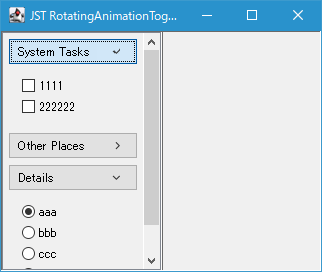
JToggleButtonに選択するとアニメーション効果付きで時計回りに90度回転、選択解除で-90度回転して元の0度に戻る展開・折り畳みIconを設定します。
Screenshot
Advertisement
Source Code Examples
class AnimatableIcon implements Icon {
  private final Icon icon;
  private final Timer timer = new Timer(15, null);
  private double currentAngle;
  private double targetAngle;
  private Component parent;

  protected AnimatableIcon(Icon icon, Component parent) {
    this.icon = icon;
    this.parent = parent;
    double step = .5;
    this.timer.addActionListener(e -> {
      double diff = targetAngle - currentAngle;
      if (Math.abs(diff) < step) {
        currentAngle = targetAngle;
        timer.stop();
      } else {
        currentAngle += diff * step;
      }
      Optional.ofNullable(this.parent).ifPresent(Component::repaint);
    });
  }

  public void animateTo(double angle) {
    this.targetAngle = angle;
    if (!timer.isRunning()) {
      timer.start();
    }
  }

  @Override public void paintIcon(Component c, Graphics g, int x, int y) {
    if (this.parent == null) {
      this.parent = c;
    }
    Graphics2D g2 = (Graphics2D) g.create();
    g2.setRenderingHint(
        RenderingHints.KEY_ANTIALIASING, RenderingHints.VALUE_ANTIALIAS_ON);
    int cx = x + icon.getIconWidth() / 2;
    int cy = y + icon.getIconHeight() / 2;
    g2.rotate(Math.toRadians(currentAngle), cx, cy);
    icon.paintIcon(c, g2, x, y);
    g2.dispose();
  }

  @Override public int getIconWidth() {
    return icon.getIconWidth();
  }

  @Override public int getIconHeight() {
    return icon.getIconHeight();
  }
}
Description
- 折り畳み状態の右矢印アイコンは
Menu.arrowIconを使用 - アコーディオンパネルはJPanelをアコーディオン風に展開のタイトル部分を
JLabelからBoxLayoutを設定したJButtonに変更して使用JButtonの子要素として左端にタイトル文字列表示用のJLabel、右端に展開・折り畳みIconを設定したJToggleButtonを配置
JButton、またはその子要素のJToggleButtonがクリックされたらアコーディオンパネルの展開・折り畳みと合わせて展開・折り畳みIconの回転角度を設定してアニメーションを開始- 回転アニメーション用の
Timerは各Icon毎に作成して使用
- 回転アニメーション用の
private void rotate(AnimatableIcon animeIcon) {
  if (toggleButton.isSelected()) {
    animeIcon.animateTo(90d);
    panel.setVisible(true);
  } else {
    animeIcon.animateTo(0d);
    panel.setVisible(false);
  }
  revalidate();
  EventQueue.invokeLater(() -> panel.scrollRectToVisible(panel.getBounds()));
}